> For the complete documentation index, see [llms.txt](https://docs.opendatabay.com/llms.txt). Markdown versions of documentation pages are available by appending `.md` to page URLs; this page is available as [Markdown](https://docs.opendatabay.com/for-data-providers/listing-data-product.md).
# Listing Data Product
Setting Up Your Data Product Listing on Opendatabay
To effectively create your data product listing page on Opendatabay, ensure all required fields are completed. Here’s a guide to help you through the process:
### **Step 1/2**
**Required Fields**
1. **Name** **Field**: Data Product Name (**Example**: 20k Hours Real Interview Video Conversations for AI Training)
2. **Master Category** **Field**: Select the most appropriate master category for your listing from the following list:
````
```xml
Uncategorised
Synthetic Data
AI/ML Training & NLP Data
Healthcare Data
Financial Data
Web & Social Media Data
Consumer & Product Data
Science & Research Data
Government & Public Data
Premium Data (All Subcategories)',
```
````
3. **Listing Sub Category**
**Field**: Select the most appropriate subcategory for your listing, this will help buyers find your listing more easily.
4. **Tags and Related Searches**
**Field**: Search Tags (**Example**: Synthetic, Corpora, Labelled, Human curated)
### **Step 2/2**
1. **Data Delivery Method** **Field** Select the delivery method for your data product (e.g., One-off download, API access, Subscription-based access)
2. **Data License** **Field** Select the appropriate license for your data product (e.g., CC BY-SA 4.0, Opendatabay General AI Training License, Opendatabay Commercial AI Training License)
3. **AI Training and LLM Use License** **Field** Select the appropriate AI training license for your data product (e.g., Opendatabay General AI Training License, Opendatabay Commercial AI Training License)
4. **Geography Region** **Field:** Select the geographic region relevant to your data product (e.g., Global, Europe, North America, Asia-Pacific)
### Finalising Data product listing
Click on the newly created data product and select **Edit Details**\
This will allow you to finish data product setup, upload the image and data.
1. **Data Product Promo Image**
* **Field**: Upload a promotional image for your listing.
* **Format**: PNG, JPEG, WEBP
* **Dimensions**: 600x400 pixels
Listing Promo Image
**Description**
**About**: Provide a detailed description of your data product.
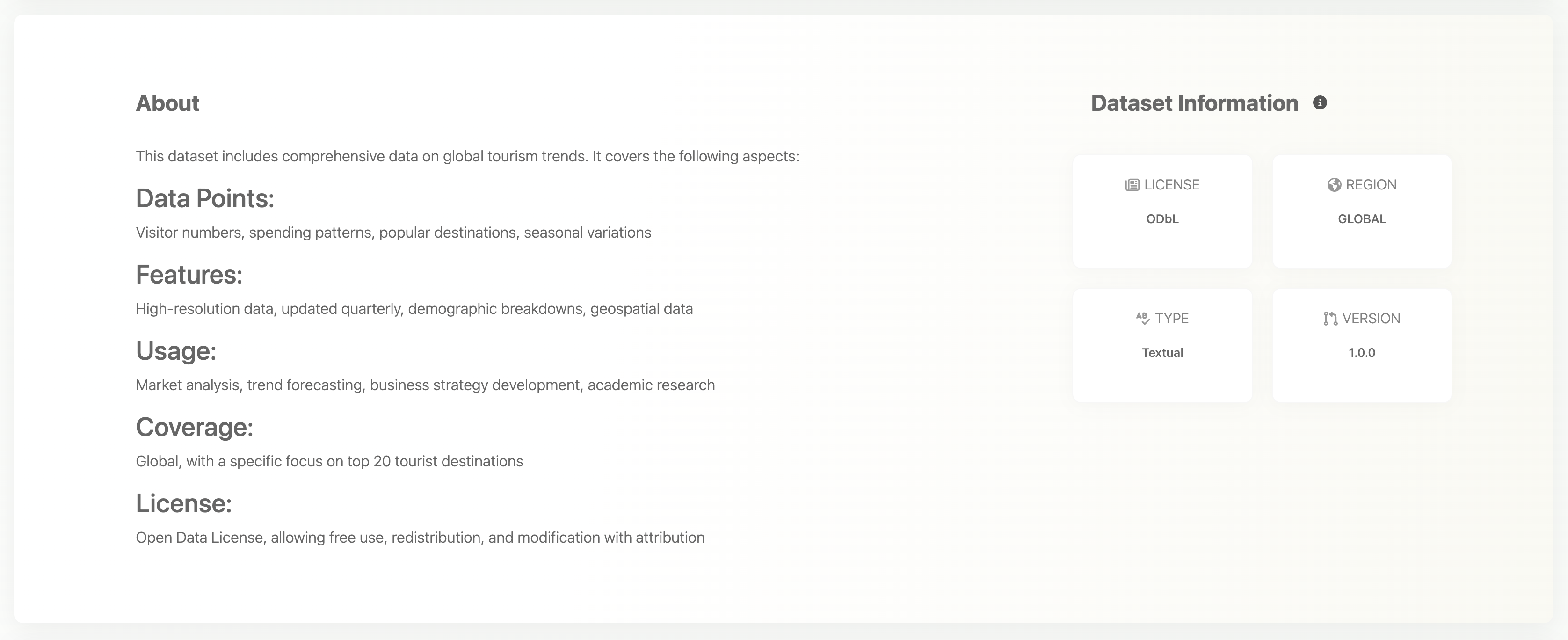
Listing Description Guides
* **Guidance**: The description can be written in Markdown language (.MD) for better formatting and more options.
* **Example**:
```markdown
# My Data Product Name
This dataset includes comprehensive data on global tourism trends. It covers the following aspects:
- **Data Points**: Visitor numbers, spending patterns, popular destinations, seasonal variations
- **Features**: High-resolution data, updated quarterly, demographic breakdowns, geospatial data
- **Usage**: Market analysis, trend forecasting, business strategy development, academic research
- **Coverage**: Global, with a specific focus on top 20 tourist destinations
- **License**: Open Data License, allowing free use, redistribution, and modification with attribution
- **AI Training License**: Explain your AI training license or choose from Opendatabay's AI training licenses (General or Commercial) based on your use case and target audience.
```
**Dataset Information**
* **License**: Specify the dataset's license (e.g., CC BY-SA 4.0) See [Licenses](broken://pages/YWOAXpB2AfQxTKXcJP48) for more information
* **Region**: Specify the dataset's region (e.g., Global, Europe, North America)
* **Dataset Type**: Specify the dataset's type (e.g., Textual, Images, Videos) **Additional Information**
* **Format**: CSV, ZIP, PDF, MP4, OGG, JPEG, PNG, etc.
* **Size**: Total size of the dataset (e.g., 10 GB)
* **Records**: Number of records, Lines, Files in the bundle (e.g., 27 million, 20k hours of video, 500k images)
* **Updated**: Date of last update ( e.g., dd/mm/yyyy)
* **Purchase type**: Type of purchase ( eg., One-off purchase, API, Subscription)
Final Steps
1. **Review All Information**: Ensure all fields are accurately filled out and all required information fields are populated.
2. **Save**: Once reviewed, save your data product
## List For Sale
Click on your listing and select List For Sale
Confirm that you have the right to list and sell data\
Agree to the listing terms and conditions\
Confirm that you are familiar with platform listing fees and charges\
Set the price in GBP and list your product for sale.
By following these steps, you will create a detailed, visually appealing, and professional data product page that attracts buyers and facilitates smooth transactions on Opendatabay.